Team software that runs on your own Wi-Fi.
We build small, sharp Windows tools for businesses that are tired of paying per person, per month, forever. You buy it once. It runs on a PC you already own. Nothing about your business leaves your office.
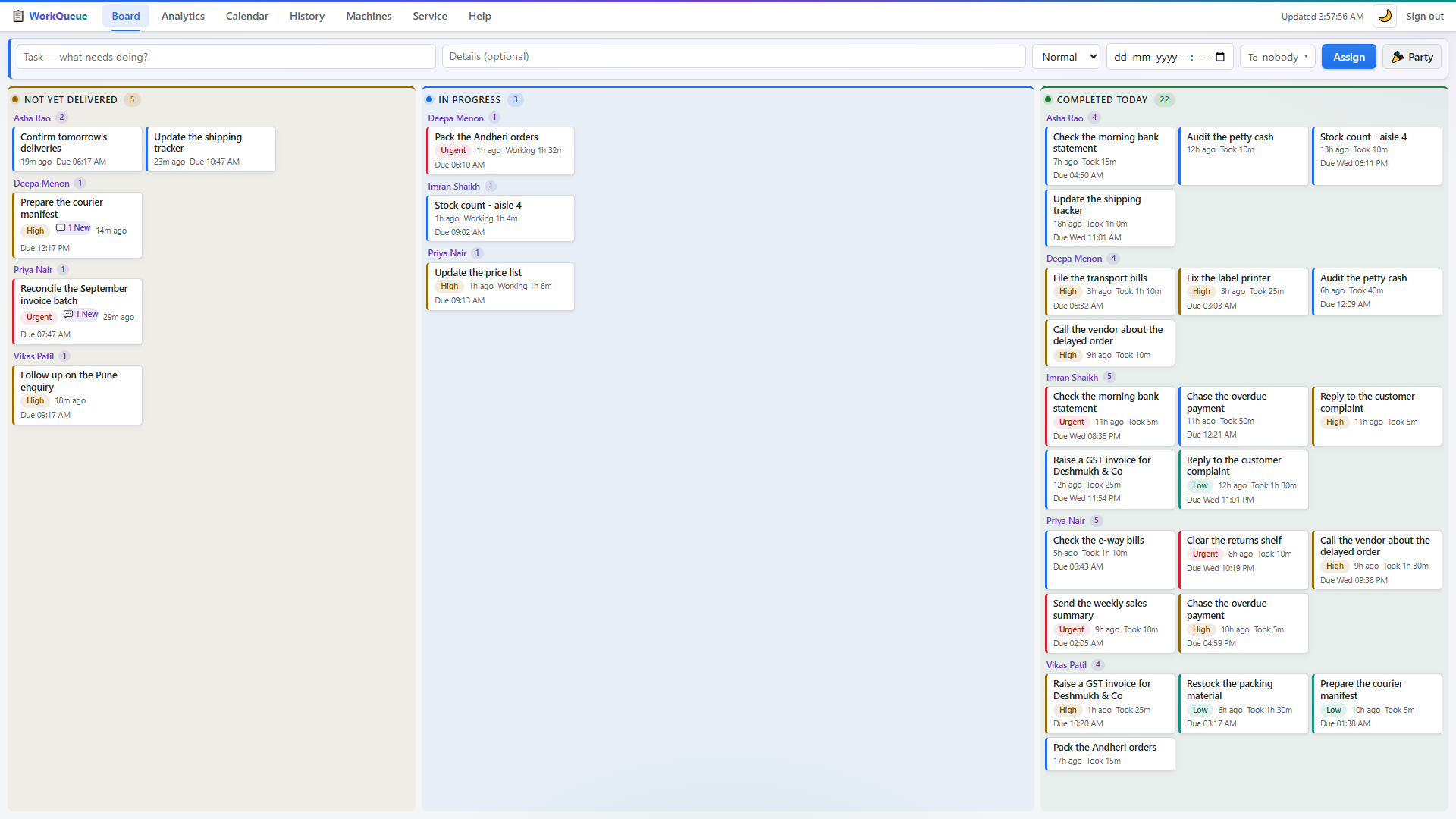
Watch one task go out and come back.
A minute of WorkQueue running for real: a job typed on the manager's board, delivered to an employee's strip a couple of seconds later, timed without anybody starting a clock, and turned into a number the moment it is done.
Recorded on 10 September 2026 against WorkQueue 4.0.1 and a database of demo data. The dashboard is captured from the browser; the strip is captured from the top of a real Windows desktop, at its real size. The names are invented — everything they are doing is not.
Most business software is rented, not owned.
A ten-person team on a typical task tool pays somewhere near ₹90,000 a year, every year, to store their own work on someone else's computer. For a lot of small businesses that maths never made sense.
Your data stays yours
Everything lives in one file on a PC in your own office. No third-party servers, no data-processing agreement to read, nothing to leak if a vendor gets breached.
One price, then it is yours
Pay once for the company, not monthly for every person. Hire five more people and the bill does not move. There is no meter running while you sleep.
It works when the internet does not
Your broadband drops; your team keeps working. Everything runs over the office network, so an outage at your ISP is somebody else's problem.
WorkQueue — hand out work, and know how long it took.
A manager assigns tasks from a browser. Every employee sees their own queue in a thin strip at the top of their screen — not an app they have to remember to open. The clock starts by itself, and stops when they press Complete.
Nobody has to remember to check anything
The strip is docked into Windows the same way the taskbar is. It is always there, it never covers a window, and a new task appears on it within seconds of being assigned.
- No app to open. The queue is already on screen, all day.
- No accept step. A task is logged as received the moment it reaches their PC.
- One button. When the job is done they press Complete. That is the whole workflow.


Timing you did not have to ask anyone for
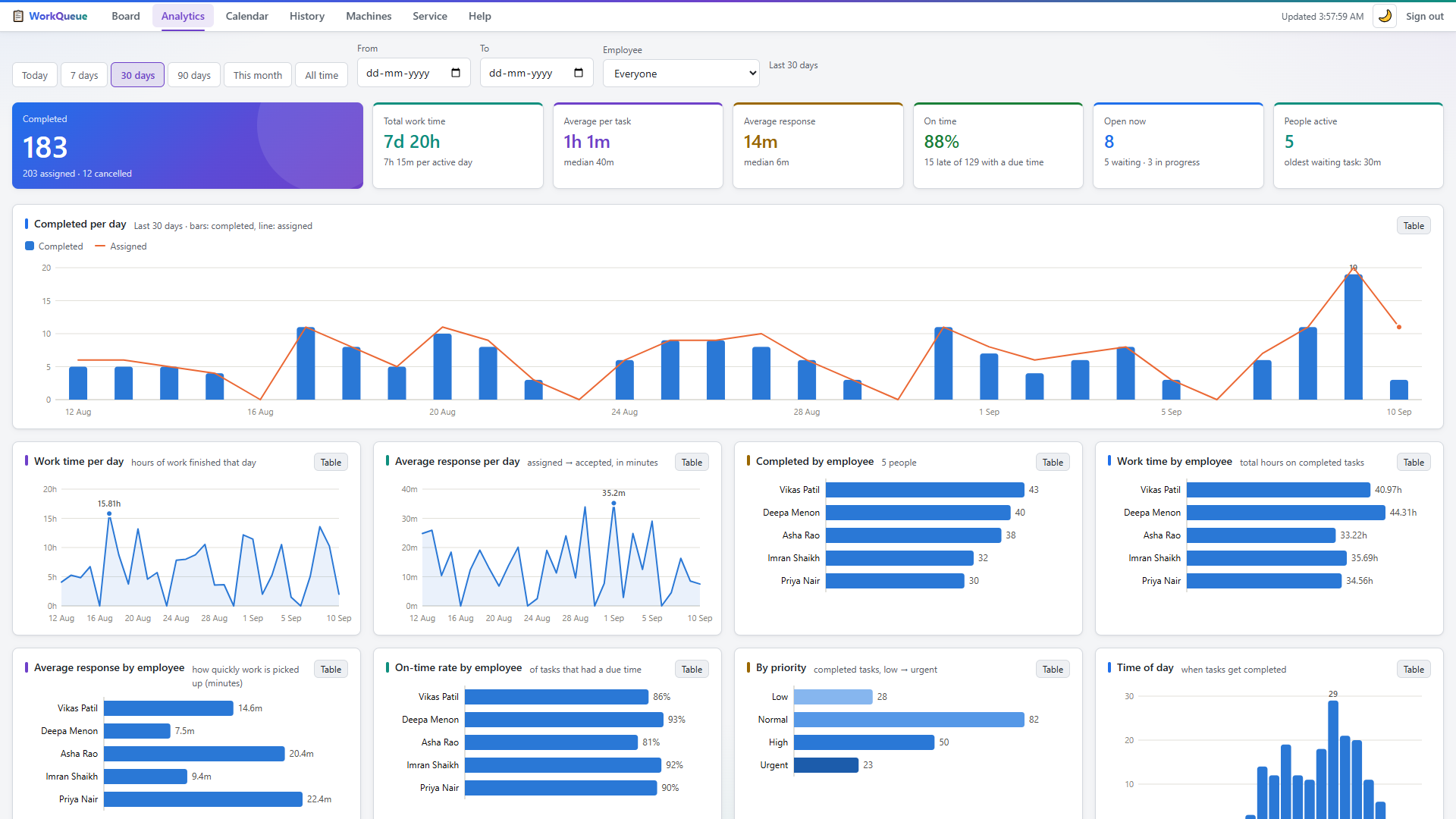
Because the two timestamps are captured automatically, you get real numbers without a single person filling in a timesheet: how long work waited before it was seen, how long it took, who is carrying the load, what is running late.
- Response time — assigned until it reached their screen.
- Work time — reached their screen until Complete.
- Ten charts and a CSV export that match whatever you have filtered on screen.
Three double-clicks and you are running.
There is no account to create, no card to enter and no cloud region to choose. Everything installs from a folder you can carry on a USB stick.
Install the server
Run one file on the PC that stays switched on — the manager's machine is usually the right one. It starts itself at boot from then on, and prints the web address for the dashboard.
Install the strip
Run one file on each employee PC. It finds the server on the network by itself, so there is no address to type and no admin password to chase.
Name the machines
Open the dashboard, type each person's name next to their PC, and start assigning. That name is what appears on their strip and in every report.
One tool today. More on the way.
Every Quietworks tool follows the same rules: it runs on hardware you already own, it is bought once, and it keeps working when the internet does not. Tell us which of these you would actually use and it moves up the list.
WorkQueue
Assign work to your team over the office network and get automatic timing, per-person reporting and a full history — without anyone filling in a timesheet.
Take a lookNext tool
The second Quietworks tool is being built now. It follows the same shape: runs on your own network, bought once, no monthly fee.
Hear about it firstYour problem
Is there a job in your office that runs on a shared spreadsheet and a lot of shouting? That is exactly the kind of thing we turn into a tool.
Describe itSmall tools, made to be left alone.
- It should not interrupt anyone. Software that shouts at your staff all day gets ignored, then uninstalled. Ours takes 34 pixels and stays quiet.
- It should survive a bad day. The network drops, the router changes the IP, someone unplugs the server. All three are handled, on purpose, in the code.
- It should be one file to back up. Everything a Quietworks tool knows sits in a single database file you can copy to a pen drive.
- It should be honest about limits. There is a plain list of what each tool does not do, written before you buy, not discovered afterwards.
Pages for the question you arrived with.
Written in English only, because that is how these get asked.
The things people ask first
Do we need a server, or IT people?
Neither. The "server" is a program that runs on an ordinary Windows PC you already have — usually the manager's. If someone in the office can install a printer, they can install this. If you would rather not, we will do it for you over a remote session.
What happens when the Wi-Fi goes down?
Employees keep seeing their tasks and keep marking them complete. Those actions queue up on their own PC with the real time they were clicked, and are delivered when the network comes back — so a task finished at 10:35 during an outage is still recorded as 10:35.
Can people use it from home, or from another branch?
Yes. WorkQueue can be joined to a private network (Tailscale) so laptops outside the office reach the same server securely, with nothing exposed to the public internet. It is one extra step during setup, and it is included.
Is this only for Windows?
Today, yes — both the dashboard PC and the employee PCs need Windows 10 or 11. The dashboard itself is just a web page, so it opens on any device on your network, including a phone. Mac and Linux employee support is on the roadmap rather than in the box, and we would rather say so plainly.
What do we get for the money, exactly?
A licence for your whole company — every PC in the office, no per-seat counting — a year of updates, and email support. Full details are on the pricing page.
Try it on your own team for 30 days.
The full tool, no feature held back, nothing to cancel. Tell us roughly how many PCs you have and we will send the installer and walk you through it.